
owner's guides
Pick your model to download the owner's guide.
Current models
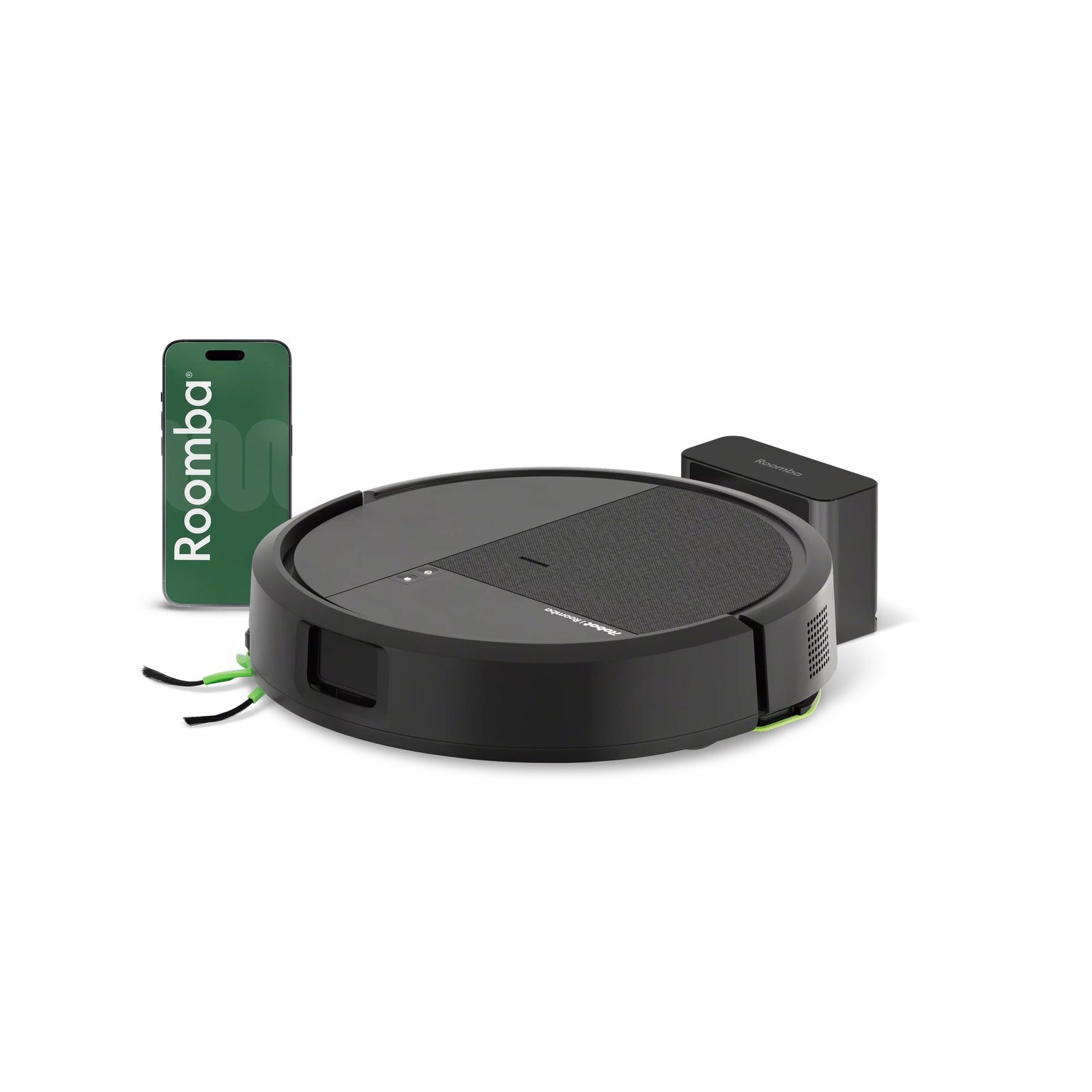
Roomba® Plus 575 Combo robot + AutoWash™ dock
New
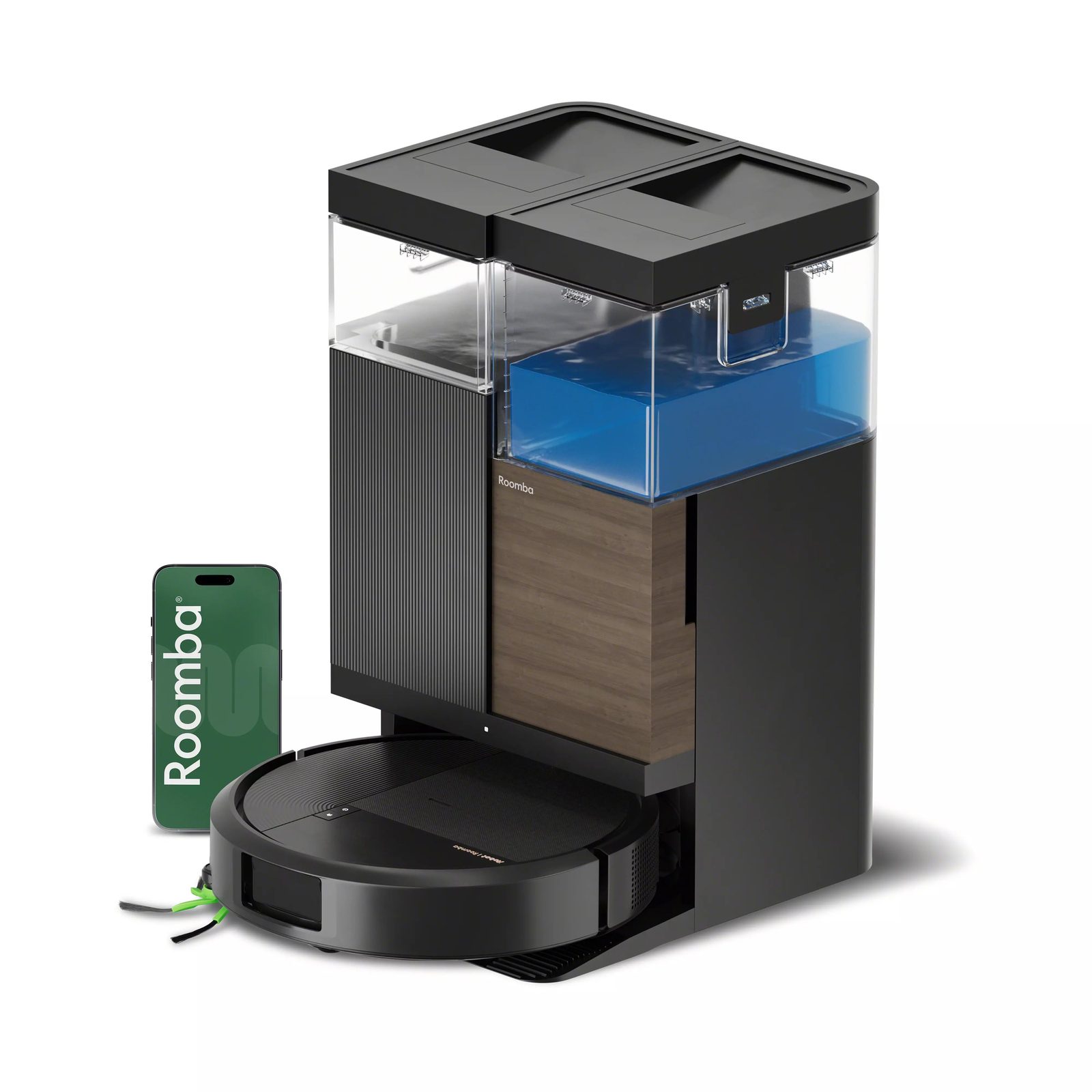
Roomba® Plus 675 Combo robot + AutoWash™ dock
New
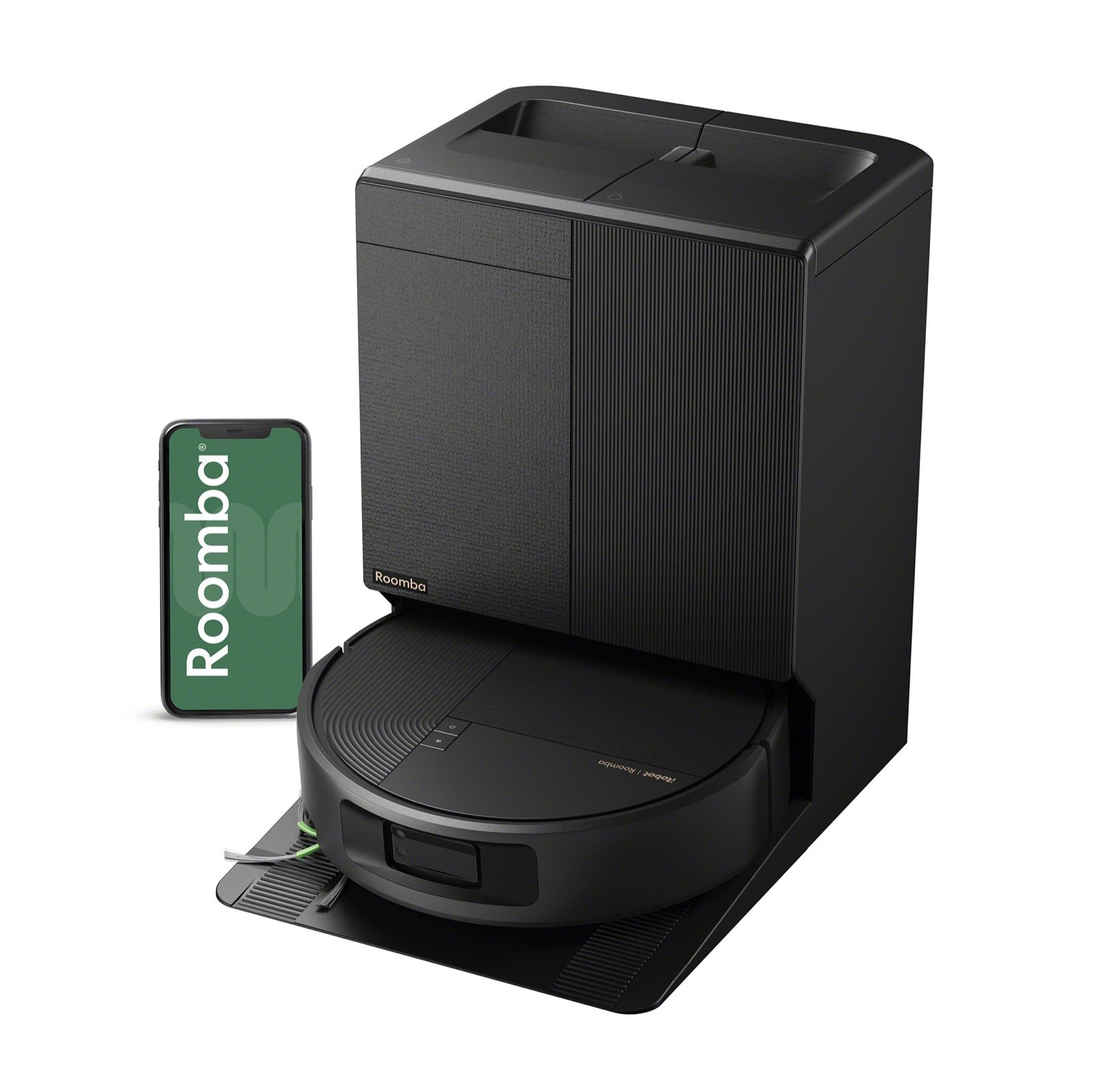
Roomba® Max 875 Combo robot + AutoWash™ dock
Previous models
Previous models
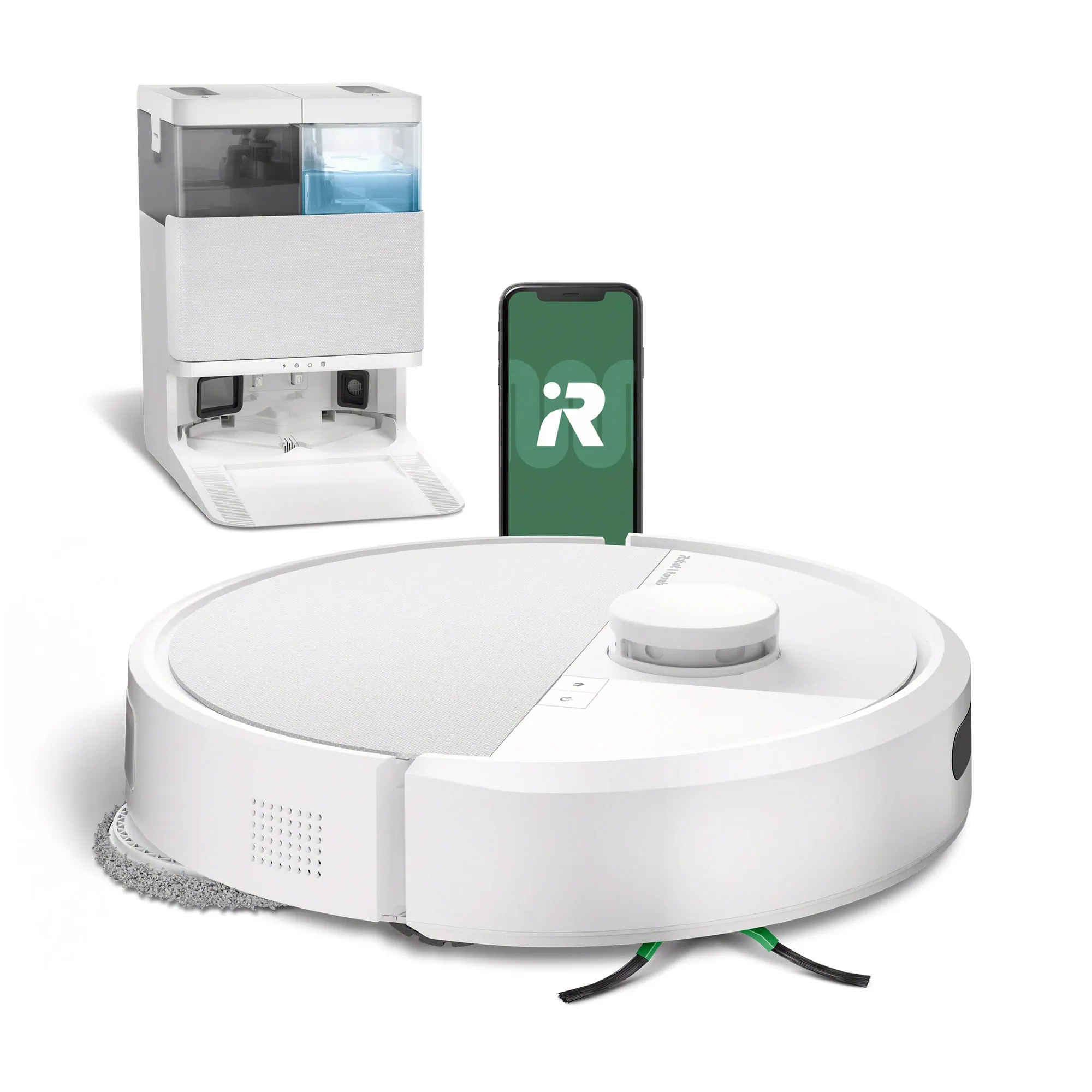
Roomba® Plus 405 Combo robot + AutoWash™ dock
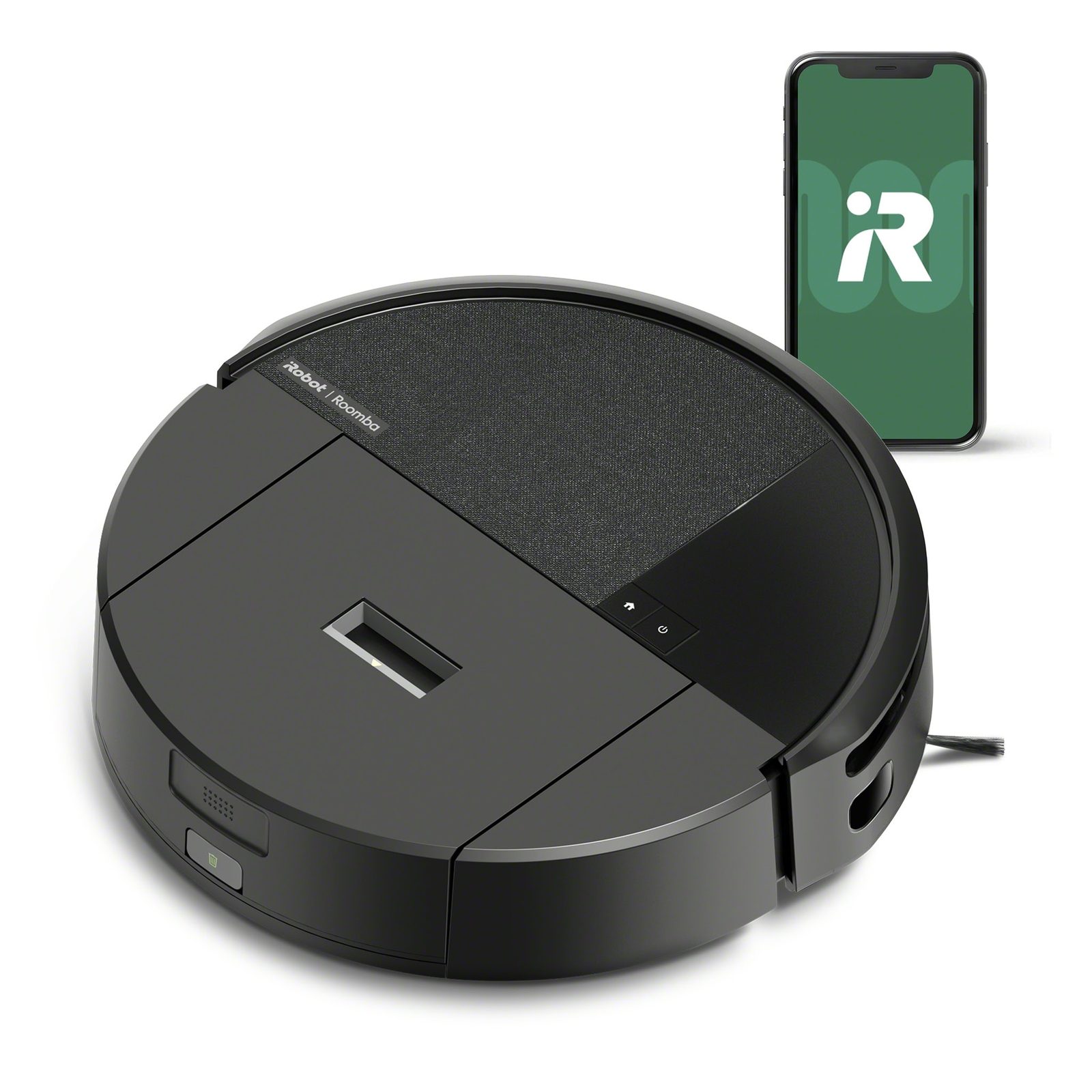
Roomba® 205 DustCompactor™ Combo robot
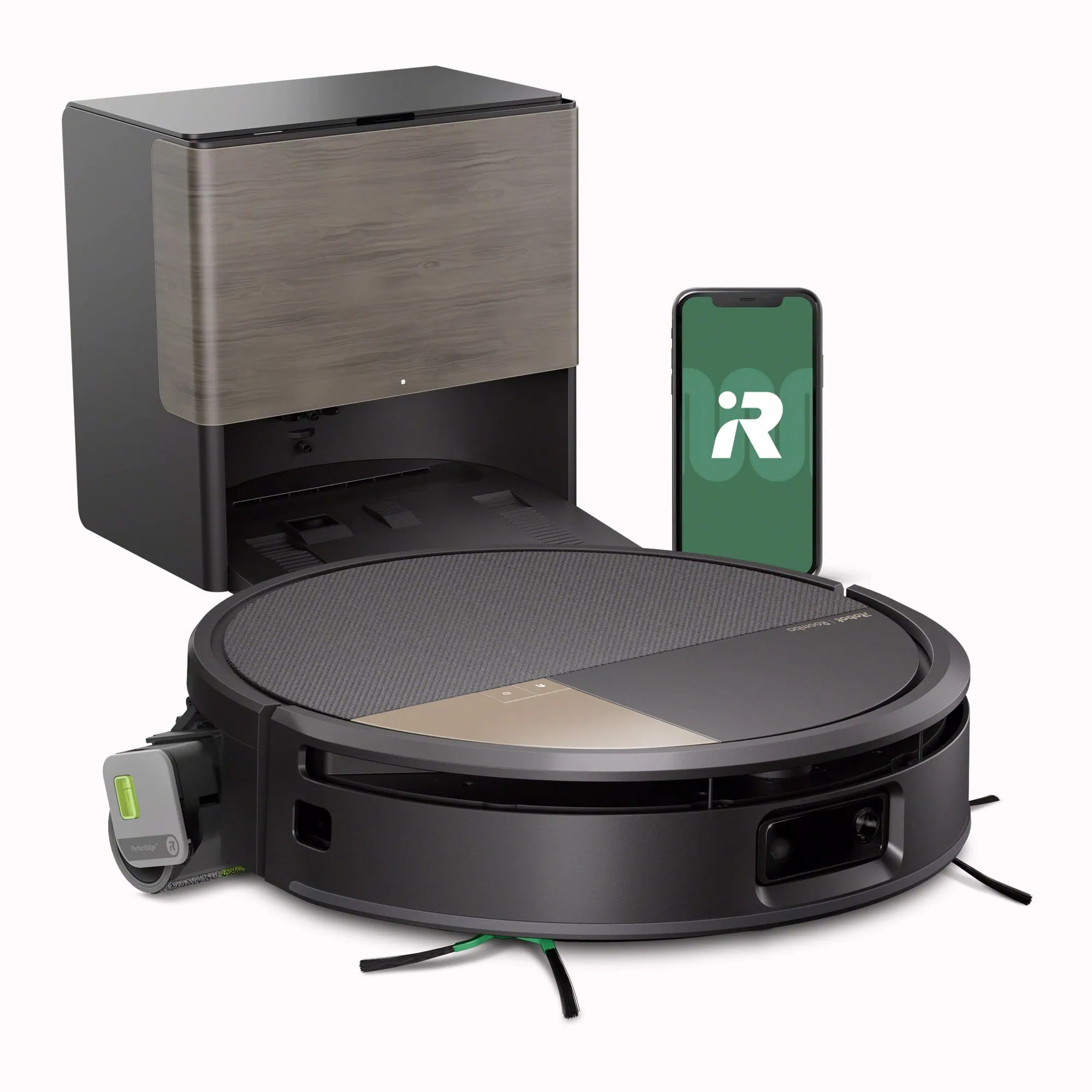
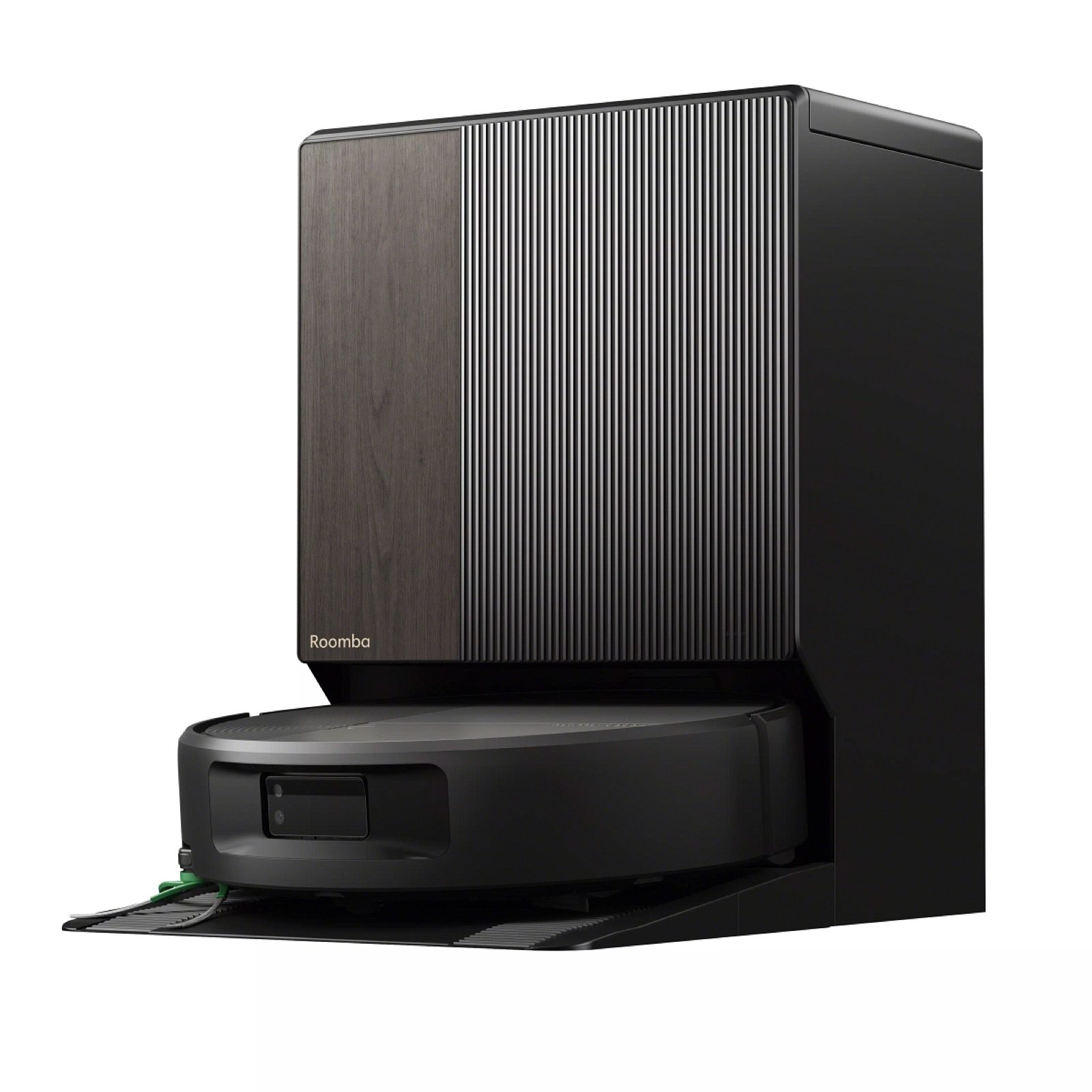
Roomba® Max 705 Combo robot + AutoWash™
- Roomba® Plus 505 Combo robotGuide
- Roomba® 105 Combo robotGuide
- Roomba® Combo Essential robotGuide
- Roomba® Combo j5 robotGuide
- Roomba® i3+ robotGuide
- Roomba® Combo i5 robotGuide
- Roomba® Combo i8+ robotGuide
- Roomba® Combo j7 robotGuide
- Roomba® Combo j7+ robotGuide
- Roomba® s9+ robotGuide
- Braava jet® m6 robotGuide
Getting started
Set up Wi-Fi and connect the app
- Download the Roomba® app on your phone
- Tap add a robot in the app
- Follow the on-screen steps until Wi-Fi is connected
How to find your serial number
You need the serial number to register your warranty and when you contact customer care. Its location differs by model, so check the guide for your model.
See the stepsRoutine care
- Empty the bin and clean the filter
- Clean the brushes and wheels
- Wash or replace the mop pad
How to find your serial number
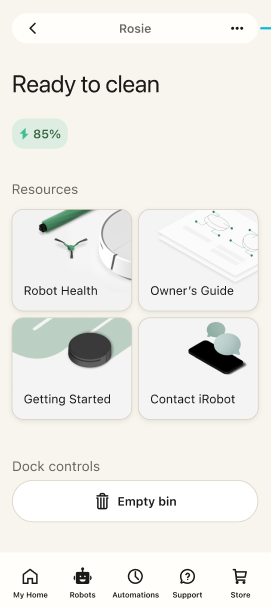
In the Roomba® app
- Open your robot's product details page in the app
- Tap the three dots at the top right to open product settings
- Tap "about" followed by your robot's name, and the serial number is shown there
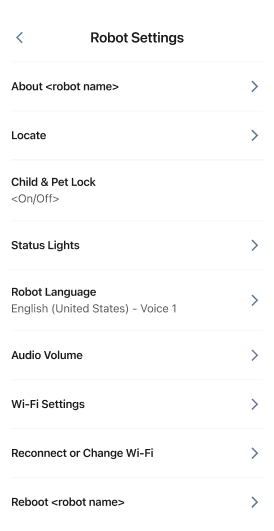
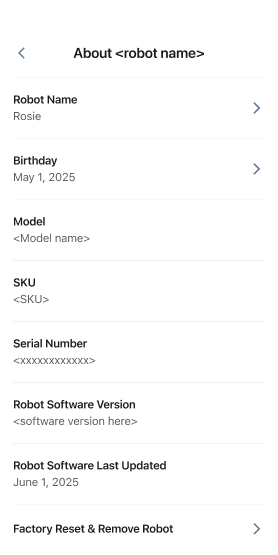
On the robot
- Take the bin out of the robot
- Turn the robot over
- Look for the serial number label where the bin sits
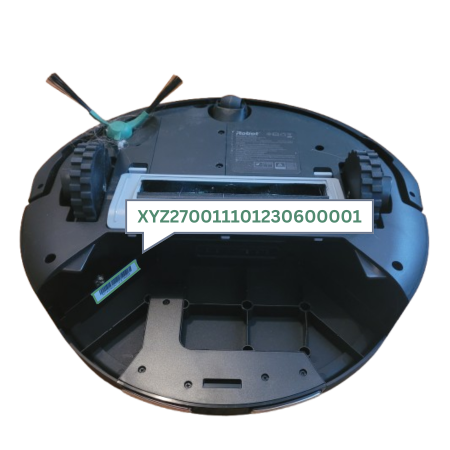
Roomba® 115 Combo robot
Remove the bin, then look under the robot
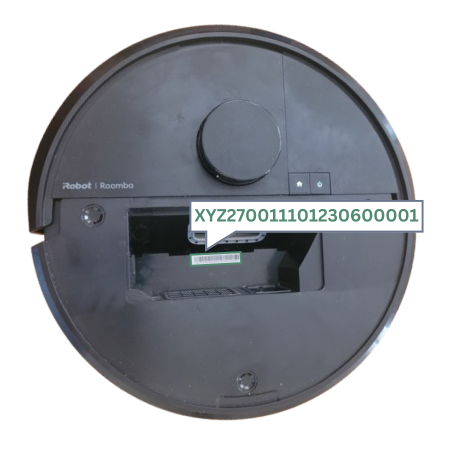
Roomba® Plus 575 Combo robot
Remove the bin, then look under the robot
Roomba® Plus 405 Combo robot
Remove the bin, then look under the robot
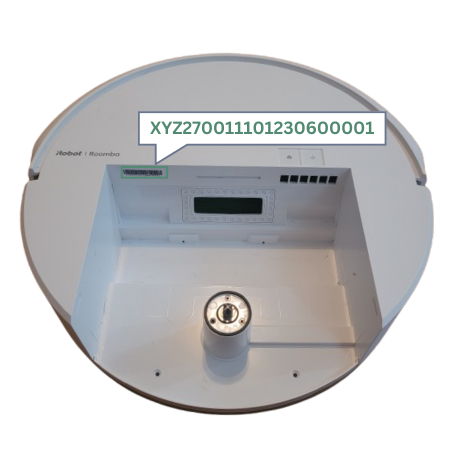
Roomba® 205 DustCompactor™ Combo robot
Remove the bin, then look under the robot
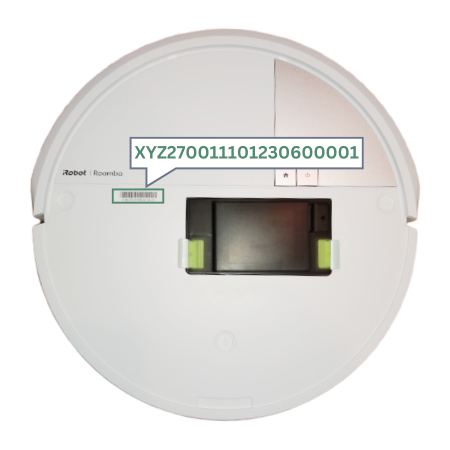
Roomba® Max 705 Combo robot
Lift the top cover, the label sits beside the bin bay
For the Roomba® Plus 675 Combo robot, look in the same place as the Roomba® Plus 575 Combo robot. For the Roomba® Max 875 Combo robot, look in the same place as the Roomba® Max 705 Combo robot. You can also find it in the Roomba® app.
Set up Wi-Fi and connect the app
How to connect
- Download the Roomba® app, then sign in or create an account
- Put the robot on its dock and make sure it is powered on
- Turn on Bluetooth, and connect your phone to the home Wi-Fi you want the robot to use
- Tap add a robot in the app, then pick your model
- Choose your Wi-Fi network and enter the password
- Wait until the app confirms the connection, then give your robot a name
If it will not connect
- Move the robot close to the router while you set it up, then move it back afterwards
- Check that your phone is on the same network you want the robot to use, not another network at home
- If your router splits the 2.4GHz and 5GHz networks, try connecting to the 2.4GHz one
- Allow the app to use location and Bluetooth in your phone settings
- Restart the router and the robot, then start again
Still stuck, contact us with your model and serial number.
Recommended care schedule
Every figure here comes from that model's owner's guide. Pick your model to see the table. Never wash the filter with water. Some bins must not be washed either, so follow the steps in your model's owner's guide.
Roomba® 115 Combo robot · Robot
| Part | Care frequency | Replace |
|---|---|---|
| Mop pad tray | Cleaned automatically after every use | Every 2–3 months or as needed |
| Mop pad | Clean after mopping | Every 3–6 months |
| Water tank | Empty after every use | — |
| Bin | Empty and rinse as needed | — |
| Dual multi-surface brushes | Clean once a week | Every 6–12 months |
| Edge-sweeping brush | Clean every 2 weeks or as needed | Every 3–6 months |
| Filter | Clean once a week, twice a week with pets | Every 3–6 months |
| Charging contacts | Clean every 2 weeks or as needed | — |
| Caster wheel | Clean every 2 weeks or as needed | — |
| Sensors | Clean once a month or as needed | — |
| Brush guard | Check every 6 months | Replace if worn or damaged |
Replacement intervals vary with use. Replace a part sooner if you can see wear. · See the full guide · Buy parts
Roomba® Plus 575 Combo robot · Robot
| Part | Care frequency | Replace |
|---|---|---|
| Mop pad tray | Cleaned automatically after every use | Replace if worn or damaged |
| Mop pad | Washed and dried automatically after mopping | Every 3–6 months |
| Water tank | Empty after every use | — |
| Bin | Empty and rinse as needed | — |
| Dual multi-surface brushes | Clean once a week | Every 6–12 months |
| Edge-sweeping brush | Clean every 2 weeks or as needed | Every 3–6 months |
| Filter | Clean once a week, twice a week with pets | Every 3–6 months |
| Charging contacts | Clean every 2 weeks or as needed | — |
| Caster wheel | Clean every 2 weeks or as needed | — |
| Sensors | Clean once a month or as needed | — |
| Brush guard | Check every 6 months | Replace if worn or damaged |
Replacement intervals vary with use. Replace a part sooner if you can see wear. · See the full guide · Buy parts
Roomba® Plus 675 Combo robot · Robot
| Part | Care frequency | Replace |
|---|---|---|
| Main brush guard | Check every 6 months | Replace if worn or damaged |
| Charging contacts | Clean every 2 weeks or as needed | — |
| Robot bin | Clean every 2 weeks or as needed | — |
| Edge-sweeping brush | Clean every 2 weeks or as needed | Every 3–6 months |
| Anti-tangle main brush | Clean once a week | Every 3–6 months |
| Lifting multi-surface wheel | Clean every 4 weeks, weekly with pets | — |
| Drive wheels | Clean every 4 weeks, weekly with pets | — |
| Roller mop | Clean as needed | Every 3–6 months |
| Roller mop scraper groove | Clean every 2 months or as needed | — |
Dock
| Part | Care frequency | Replace |
|---|---|---|
| Dock charging contacts | Every month | — |
| Sensors | Clean once a month | — |
| Docking signal area | Clean once a month | — |
| Cleaning tray | Clean every 2 weeks or as needed | — |
| Clean water tank | Rinse and refill as needed | — |
| Dirty water tank | Rinse and empty as needed | — |
| Ramp | Clean once a month | — |
Replacement intervals vary with use. Replace a part sooner if you can see wear. · See the full guide · Buy parts
Roomba® Max 875 Combo robot · Robot
| Part | Care frequency | Replace |
|---|---|---|
| Edge-sweeping brush | Clean once a month | As needed, 3–6 months suggested |
| Main brush | Clean once a month | As needed, 3–6 months suggested |
| Roller mop | Clean as needed | As needed, 3–6 months suggested |
| Roller mop scraper groove | Clean as needed | — |
| Bin filter | Clean as needed | Every 6–12 months |
| Dirty water tank | Clean as needed | — |
| Dust box | Clean as needed | — |
| Charging contacts and rear docking light | Clean once a month or as needed | — |
| Lifting omni-directional wheel | Clean every 4 weeks, weekly with pets | — |
| Wheels | Clean once a month or as needed | — |
| Sensors, including the navigation and obstacle-avoidance module, edge sensors and cliff sensors | Clean once a month or as needed | — |
Dock
| Part | Care frequency | Replace |
|---|---|---|
| Dock charging contacts | Clean once a month | — |
| Sensors | Clean once a month | — |
| Docking signal area | Clean once a month | — |
| Cleaning tray and its float | Clean every 2 weeks or as needed | — |
| Clean water tank | Rinse and refill as needed | — |
| Dirty water tank | Rinse and empty as needed | — |
| Ramp | Clean once a month | — |
| Dust bag | Replace as needed | — |
| Cleaning solution | Replace as needed | — |
Replacement intervals vary with use. Replace a part sooner if you can see wear. · See the full guide · Buy parts
Your robot is showing an error code
Look up what the code means and how to fix it in our answers library